




Ask Question Forum:
Model Library:2025-02-08:A.I. model is online auto reply
C
O
M
P
U
T
E
R
2
8
Show
#
ASK
RECENT
←
- Underline
- Bold
- Italic
- Indent
- Step
- Bullet
- Quote
- Cut
- Copy
- Paste
- Table
- Spelling
- Find & Replace
- Undo
- Redo
- Link
- Attach
- Clear
- Code
Below area will not be traslated by Google,you can input code or other languages
Hint:If find spelling error, You need to correct it,1 by 1 or ignore it (code area won't be checked).
X-position of the mouse cursor
Y-position of the mouse cursor
Y-position of the mouse cursor
Testcursor
caretPos
Attachment:===
Asked by Norton Alex
at 2026-08-13 03:14:36
 Modify
Point:500 Replies:4 POST_ID:829433USER_ID:12423
Topic:
iphone;safari;MacBook;chrome
we can debug website at Safari on iphone after enable Safari's web inspection , and now
I would like to debuy website at Chrome on iphone, but we can NOT see the site at Safari menu at "Develop", how to enable it ?
Thx
Expert: rcschroeder replied at 2026-08-13 05:45:49
Debugging a website on an iPhone in Safari is possible using Web Inspector, and I'm happy to help you troubleshoot.
**Enabling Web Inspection in Safari on iPhone**
To access the Web Inspector in Safari on your iPhone:
1. Open Safari on your iPhone.
2. Go to **Settings** > **Safari**.
3. Toggle on **Show Develop Menu in Menu Bar**.
4. Tap **Develop** from the top menu bar, and then select **Inspect Element** or click the **Inspect Element** button (looks like a small magnifying glass) in the bottom right corner of the Safari window.
This will allow you to view the Web Inspector, which is similar to Chrome's DevTools.
**Why can't I see the website in Chrome on iPhone?**
If you're trying to debug a website using Chrome on your MacBook and can't see it in Safari on your iPhone, there are a few possible reasons:
1. **Cross-browser debugging**: Since you're testing on an iPhone (Safari), it's unlikely that the website is fully compatible with Chrome on your MacBook. You might need to test on multiple browsers or platforms to ensure compatibility.
2. **Device-specific issues**: Websites often require specific device characteristics (e.g., screen size, orientation) to function correctly. If your website doesn't adapt well to these iPhone-specific conditions, you won't be able to view it properly in Safari.
3. **Extension or plugin limitations**: Some extensions or plugins might not work seamlessly across different browsers or platforms.
**Alternative debugging methods**
If you're unable to debug using Web Inspector in Safari on your iPhone, consider the following alternatives:
1. **Use Chrome's Developer Tools (DevTools) on a computer**: Open Chrome on your MacBook and inspect the website using DevTools.
2. **Use a third-party browser extension or tool**: There are several extensions and tools available that can help you debug websites across different browsers and platforms.
**Additional resources**
For more information on Safari's Web Inspector, including tutorials and guides, I recommend checking out Apple's official documentation: [https://support.apple.com/en-us/HT201314](https://support.apple.com/en-us/HT201314)
Additionally, you can explore online communities, forums, and blogs dedicated to web development and debugging, such as Stack Overflow or Web Developer Forums.
I hope this information helps! If you have any further questions or concerns, feel free to ask.
**Enabling Web Inspection in Safari on iPhone**
To access the Web Inspector in Safari on your iPhone:
1. Open Safari on your iPhone.
2. Go to **Settings** > **Safari**.
3. Toggle on **Show Develop Menu in Menu Bar**.
4. Tap **Develop** from the top menu bar, and then select **Inspect Element** or click the **Inspect Element** button (looks like a small magnifying glass) in the bottom right corner of the Safari window.
This will allow you to view the Web Inspector, which is similar to Chrome's DevTools.
**Why can't I see the website in Chrome on iPhone?**
If you're trying to debug a website using Chrome on your MacBook and can't see it in Safari on your iPhone, there are a few possible reasons:
1. **Cross-browser debugging**: Since you're testing on an iPhone (Safari), it's unlikely that the website is fully compatible with Chrome on your MacBook. You might need to test on multiple browsers or platforms to ensure compatibility.
2. **Device-specific issues**: Websites often require specific device characteristics (e.g., screen size, orientation) to function correctly. If your website doesn't adapt well to these iPhone-specific conditions, you won't be able to view it properly in Safari.
3. **Extension or plugin limitations**: Some extensions or plugins might not work seamlessly across different browsers or platforms.
**Alternative debugging methods**
If you're unable to debug using Web Inspector in Safari on your iPhone, consider the following alternatives:
1. **Use Chrome's Developer Tools (DevTools) on a computer**: Open Chrome on your MacBook and inspect the website using DevTools.
2. **Use a third-party browser extension or tool**: There are several extensions and tools available that can help you debug websites across different browsers and platforms.
**Additional resources**
For more information on Safari's Web Inspector, including tutorials and guides, I recommend checking out Apple's official documentation: [https://support.apple.com/en-us/HT201314](https://support.apple.com/en-us/HT201314)
Additionally, you can explore online communities, forums, and blogs dedicated to web development and debugging, such as Stack Overflow or Web Developer Forums.
I hope this information helps! If you have any further questions or concerns, feel free to ask.
Author: Norton Alex replied at 2026-08-13 03:29:01
Add To Home Screen, it is Apple's strict policy for web push API notification/debug tools
Accepted Solution
Author: Norton Alex replied at 2026-08-13 03:25:33
500 points Excellent
debug Safari's website, just go to setting->app->Safari->Advanced->Web inspector that will see the site address at MacBook's Safari menu at develop, no need AddToHomeScreen
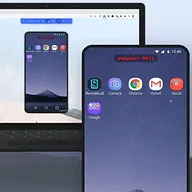
For Chrome on iphone that is not real Chrome, it is Crisos version for iOS, u need to add the website to AddToHomeScreen. see this image..
Ignore the google-sign-in, we just want to demostrate how to add to home screen for website
after added, u can debug crios chrome on iOS, similar to Safari browser on iOS/iphone
Author: Norton Alex replied at 2026-08-13 03:16:43
we already enable chrome' setting->content setting->web inspector